
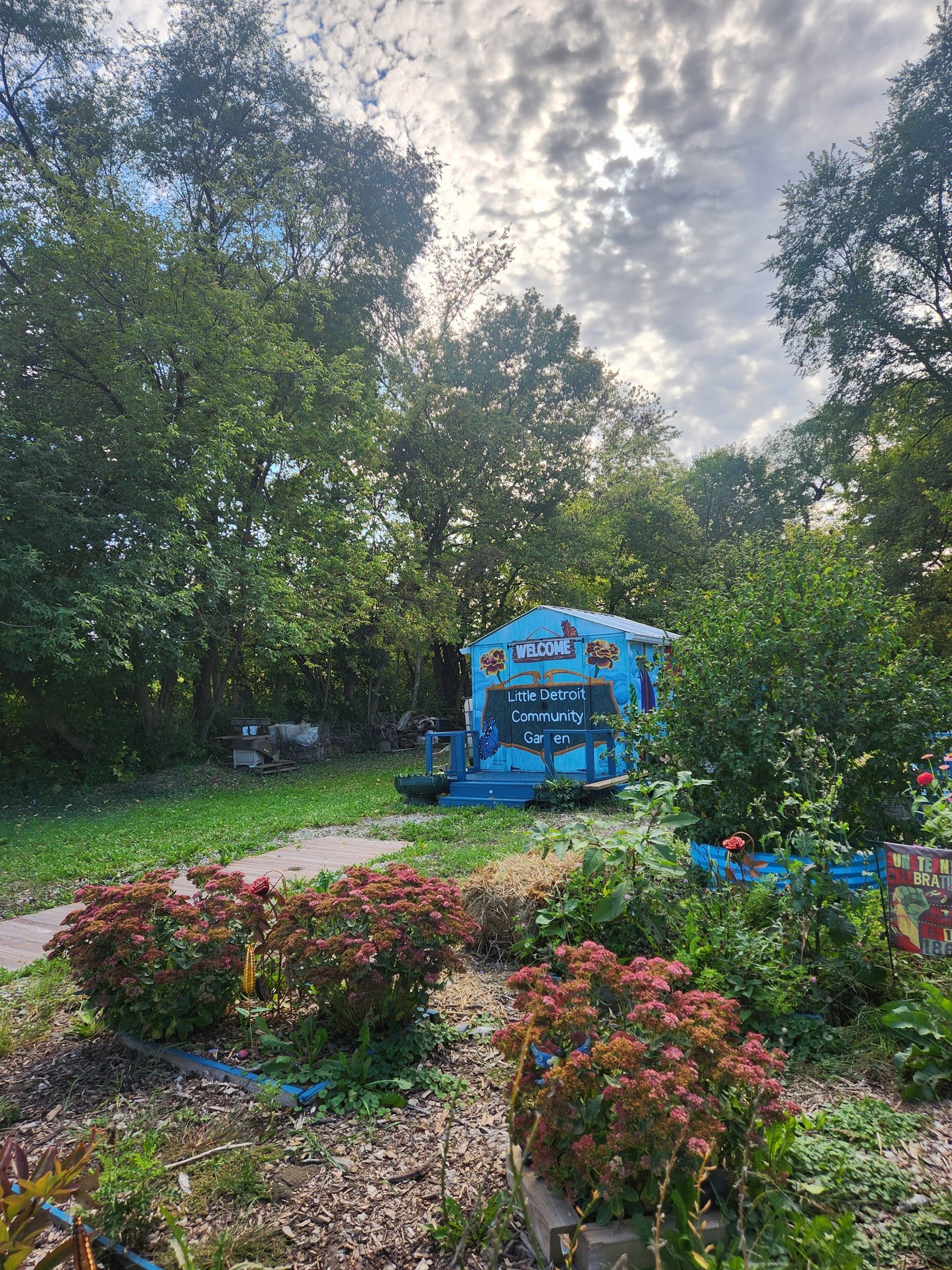
Cultivating Food, Education, and Civic Pride in East Detroit
Join Little Detroit Community Garden
Welcome to the Little Detroit Community Garden
We turn vacant land into vibrant neighborhood sanctuaries. Located on Montclair Street, LDCG is a USDA-certified urban farm, an ecological safe haven, and an outdoor classroom for the East Canfield community.
What We Do
🌻 Outdoor Education
Youth Garden Tours: Interactive ecology field trips for Detroit students.
Literacy in Nature: Hosting outdoor story times and a community "Leading Library."
Agricultural Mentorship: Hands-on workshops teaching residents to build raised beds.
🥬 Food Sovereignty
Free Fresh Produce: Growing local staples like collard greens, tomatoes, and watermelons.
Erasing Food Deserts: Delivering hyper-local nutrition directly to our neighbors.
Sustainable Farming: Utilizing certified climate-smart and organic urban agriculture practices.
🤝 Neighborhood Sanctuary
The Community Gazebo: A safe outdoor gathering hub for local block clubs.
Total Accessibility: Paved pathways designed for seniors and residents with disabilities.
Eco-Infrastructure: Managing local stormwater flooding through our signature Butterfly Rain Garden.
Meet Our Founder
"We aren't just growing food—we are planting seeds of civic pride in the next generation."
— Loretta Powell, Founder, Lead Educator, & USDA Farmer
Loretta Powell is a Detroit preschool teacher who stepped outside the classroom walls to revitalize her neighborhood. Her grassroots leadership has earned her the 2023 DreamBuilder Award and deep partnership with the Detroit Black Farmer Land Fund. Named in honor of her mother, Little Henretter Puryear, Loretta’s garden carries on a proud family legacy of Detroit urban farming.


Get Involved
🗓️ Visit Us
Location: 5051 Montclair Street, Detroit, MI
Hours: Open daily from dawn to dusk for neighbors and peaceful reflection.
🥕 Volunteer & Support
Join a Harvest: Help us tend the crops and distribute food to local families.
Group Service Days: Perfect for school groups, corporate teams, and local organizations.
Spread the Word: Connect with our active neighbor network in the Little Detroit Community Garden Facebook Group.
Contact
LittleDetroitCG@gmail.com
© 2025. All rights reserved.